Drop in on
the big screen
Play your Android phone's shooters and battle royales on the Mac. Aim with the mouse, move with WASD or grab your gamepad. Your phone, your account, your progress — nothing to reinstall.
Illustration. The overlay is Tethercast's key mapping: every circle is a touch on the phone's screen, driven by your keys and mouse.
Your loadout
Play touch games
like a PC shooter
Key mapping turns your keys, mouse and gamepad into touches exactly where the game expects them. Start from a template, tune it in seconds.
Mouse aim
A look zone turns the camera with the mouse, like on PC. Sensitivity per layout.
WASD moves
A movement stick on the keys you know — and on the left stick of your gamepad.
Every button a key
Fire, scope, jump, crouch, reload — put a key or mouse button on any on-screen button.
Gamepad ready
A controller paired with the phone just works, in any mode. A Mac gamepad drives touches through key mapping.
One layout per situation
On foot. In a car.
Mid-air.
Controls change as the match goes on — so can your keys. Up to nine layouts per game, switched with one key. Keys you hold keep working through the switch.
- Move WASD
- Fire LMB
- Scope RMB
- Jump ␣
- Steer WASD
- Boost ⇧
- Horn H
- Exit F
- Glide WASD
- Dive ⇧
- Open ␣
- Look Mouse
- Map M
- Bag Tab
- Pick up E
- Back Esc
Example layouts. Switch with the layout's own key or ⌃⌘1–9 · hold W and jump into the car — you keep moving
Latency is the product
Fast enough
to win the fight
The video is decoded by the Mac's hardware and drawn the moment it arrives. No buffers, no queue — the newest frame always wins. A live meter shows you the numbers.
From the frame arriving over USB to it being on your Mac's screen.
From the phone capturing a frame to it being on your Mac's screen, in a real match. This is the number the HUD shows.
From light on the phone's screen to light on the Mac's, end to end, in full screen (test page).
Medians, September 2026, MacBook Pro M3 Pro and our reference Android 16 phone over USB, H.264 at 60 fps: 5 and 21 ms from a 10-minute match, 56 ms from an automated flash-page test in full screen. No frame queue: if the Mac falls behind it skips ahead instead of lagging. Your numbers depend on the phone and the game.
Not an emulator
Your phone does
the heavy lifting
The game runs on your phone, with its graphics settings, your account and everything you've unlocked. The Mac shows it and handles the controls.
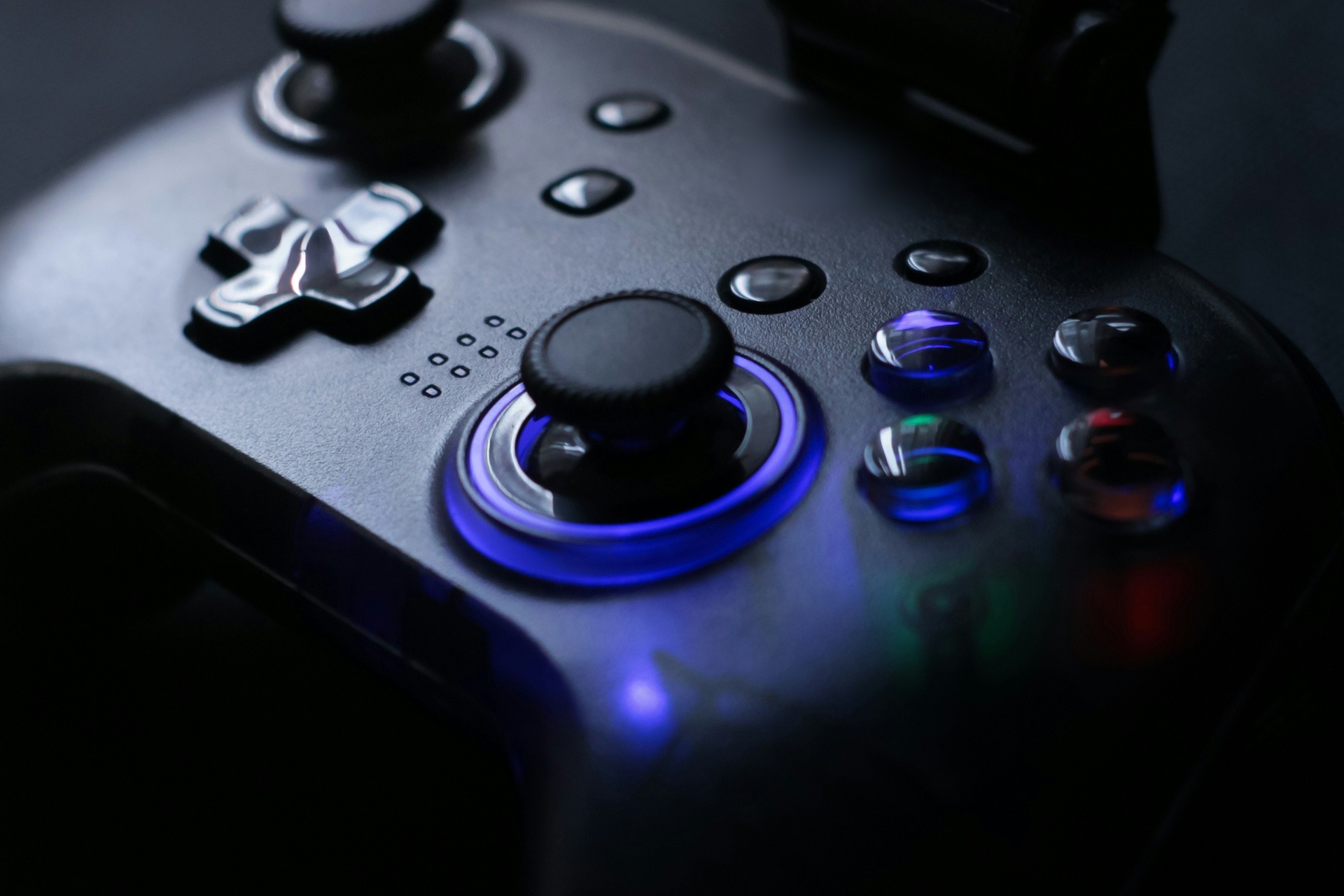
Gamepad
Pick up your controller
Pair your controller with the phone and play — games with controller support see it as their own, whatever mode Tethercast is in. Prefer a gamepad on the Mac? Key mapping puts its sticks and buttons on touches.
- Bluetooth and USB gamepads
- Keyboard & mouse as a finger with ⌘1, key mapping with ⌘2
- Picture (High/Low) and resolution (HD/SD) presets right in the match
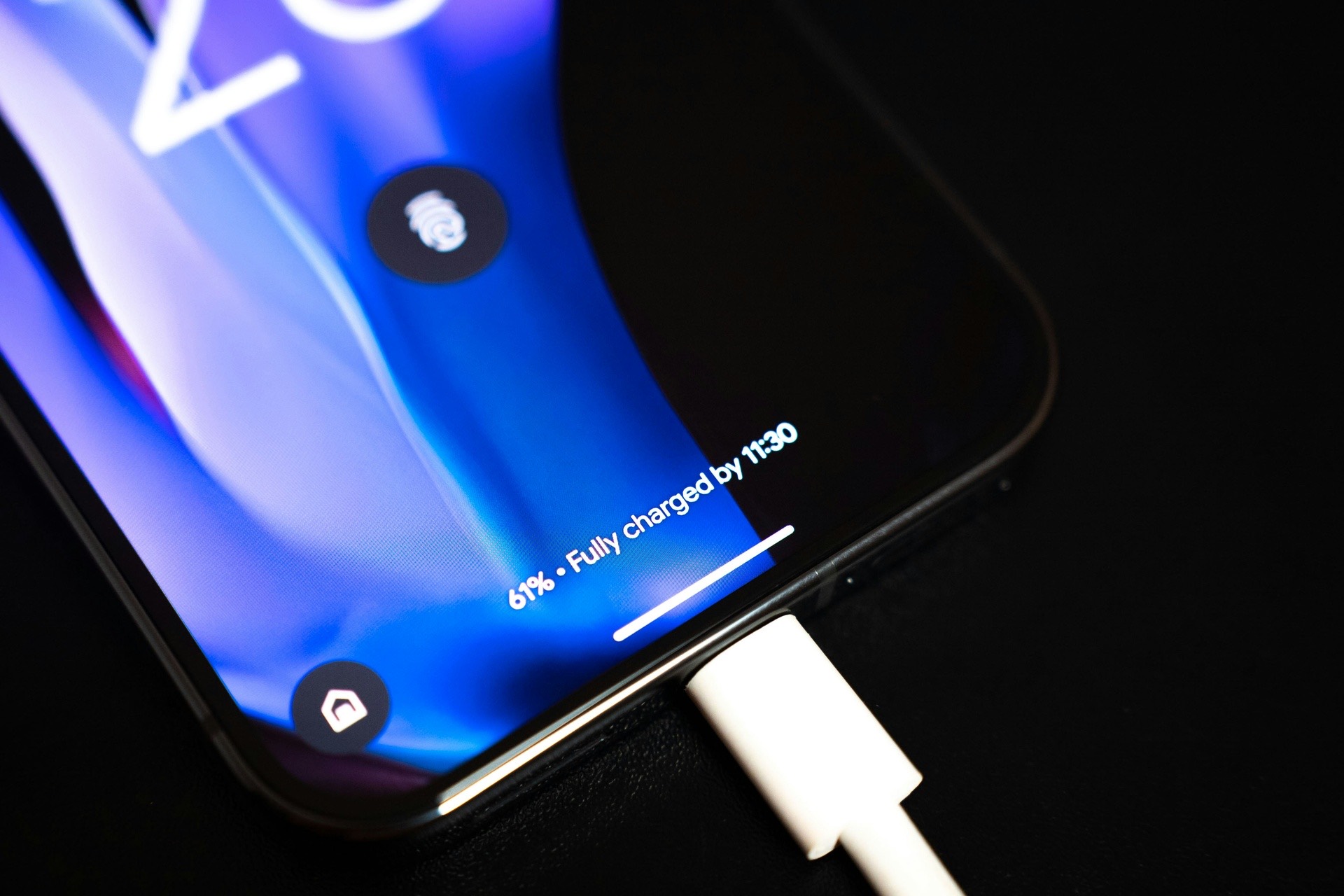
Plug in and forget
It handles the rest
Cable came loose mid-match? Plug it back in — the game and your controls resume by themselves. Phone running hot? The HUD warns you before it starts dropping frames.
- Automatic resume after a disconnect
- Live FPS and latency; phone temperature, throttling and battery in the detailed HUD PRO
- Record your best rounds to MP4 PRO
- Drag the panels anywhere, fold the HUD to one line
Two minutes to your first match
Plug in. Play.
Plug in the cable
A USB data cable, straight into the Mac. The app shows how to turn on USB debugging on your phone.
Tap “Allow” once
The phone asks to trust this Mac. Tick “Always allow” — it won't ask again.
Pick your game
Your games are in the library. Click one — it starts on the phone and fills the Mac screen.
Pricing
Free to play.
Pro to dominate.
The stream is never limited: full quality and full speed are free. Pro unlocks the tools that make touch games play like PC games.
Free
Forever.
- Full-quality, low-latency stream
- Game library
- Keyboard and mouse as a finger
- Controllers paired with the phone
- Quick picture and resolution presets
- iPhone mirroring (beta)
- FPS and latency HUD, overheating warning
Pro
Made by one developer, kept alive by supporters. Any amount from the minimum, once. No subscription; all 1.x updates on all your Macs.
- Key mapping: mouse aim, WASD, every button a key
- Shooter and MOBA templates
- Up to nine layouts per game
- Gameplay recording
- Detailed HUD
14-day money-back guarantee · The key is issued by hand and arrives by e-mail within 24 hours; it works offline
Questions
Which phones work?
Android phones with Android 11 or later and USB debugging turned on — the app shows you how, step by step. The game stays on the phone; only Tethercast is installed on the Mac. iPhones work in beta: screen and sound over USB, played with a controller paired to the iPhone (iOS does not let a Mac app tap the screen).
Is key mapping allowed in online games?
Some online games notice key mapping and match its players with emulator players. Using a gamepad through the game's own controller support is never an issue. Tethercast sends only what you do — no macros, no automation.
Does it work over Wi-Fi?
No, and on purpose: a USB cable is faster and steadier than any wireless link.
Which cable do I need?
A data cable — some cables only charge. Plug it straight into the Mac, not into a hub or monitor.
How do I activate Pro?
After payment the key arrives by e-mail. In the app choose Tethercast → Tethercast Pro…, paste the key and click Activate. It works offline; on a new Mac paste the same key.
macOS says it can't check the app
Open System Settings → Privacy & Security, scroll down and click “Open Anyway” next to Tethercast, then confirm. You need to do this once.
What about privacy?
No account, no analytics, no data collection. The app goes online only to check for updates. See the privacy policy.
Something doesn't work?
See the quick fixes or write to us — a real person reads every message; it is a one-person project, so give it a little time.
Ready?
Your squad is waiting
Free download. Two minutes to your first match.